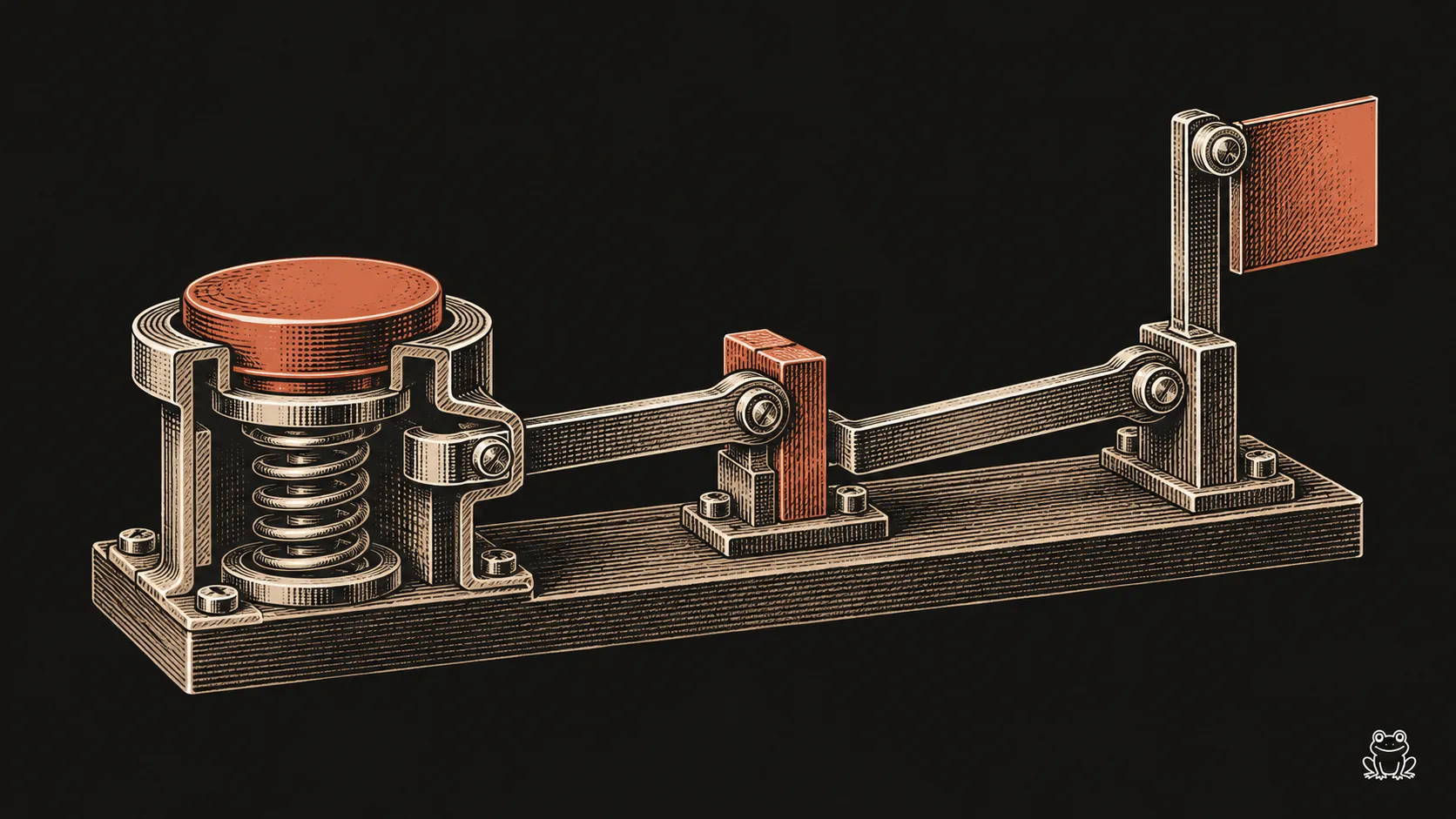
You tap a size and wait for the selection to change. Then you tap Add to cart and wait again. The page may have loaded quickly, but using it still feels slow.
Interaction to Next Paint, or INP, helps measure that gap between an action and the browser’s next visible response. It gives you a way to investigate a complaint that would otherwise be hard to describe.
On a Shopify store, start with the interactions customers use most: choosing a variant, filtering products and opening the cart.
What INP actually measures
INP assesses how quickly a page responds to clicks, taps, and key presses across a visit. It looks at the time from the interaction until the browser paints the next frame showing a response, and reports one of the slowest interactions on the page.
The thresholds, measured from real users:
- Good: 200 milliseconds or less
- Needs improvement: above 200 and up to 500 milliseconds
- Poor: above 500 milliseconds
Google recommends judging it at the 75th percentile of page loads, split by mobile and desktop. Look at the device split. Results from a recent laptop can hide problems experienced by people on less powerful phones.
Every slow interaction breaks into three parts:
- Input delay. The browser is busy with something else when the tap arrives, so it waits.
- Processing time. Your code that responds to the tap runs.
- Presentation delay. The browser works out the new layout and paints it.
The breakdown narrows the investigation. A busy browser, an expensive event handler and a costly layout update need different fixes.
Where to find your numbers
Start with Shopify’s Web Performance reports, which use real-user data for INP alongside the other Core Web Vitals. Look at which page types are worst. On most stores, it’s product pages and collection pages, because that’s where the interactive features live.
Then reproduce it yourself. Open Chrome DevTools on a product page, use the Performance panel with CPU throttling turned on, and record yourself picking a variant and adding to cart. Long tasks show up as red-flagged blocks. Each one is a moment the page couldn’t respond.
The usual Shopify culprits
App scripts on every page
Reviews widgets, upsell tools, chat bubbles and tracking scripts can all occupy the browser’s main thread. If one of them is running a long task when the customer taps, the tap waits. We’ve written about the wider app tax, and INP is where it hurts most.
Variant pickers that rebuild too much
Selecting a size or color often triggers a cascade: update the price, swap the image gallery, refresh availability, rewrite the URL, re-render recommendations. Done carelessly, a single tap rebuilds half the page. That’s processing time.
Collection filters
Filtering can fetch new results, rebuild the product grid, and recalculate filter counts in one go. Large grids with heavy product cards make the presentation phase expensive.
Cart drawers
Opening the drawer often fetches the cart, renders line items, recalculates upsells, and animates in, all at once. If the drawer waits for every piece before showing anything, the interaction feels slow even when the network is fast.
Huge DOMs
Mega menus with hundreds of links, product pages with every tab pre-rendered, and long grids of heavy cards all make layout and painting slower. That’s presentation delay.
Changes worth testing
Show something immediately
Where the interaction allows it, give immediate visual feedback before starting work that can wait. Mark the selected swatch, open the drawer with a loading state, or dim the grid while results load. The customer sees a response within the frame, and the rest catches up.
Break up long tasks
When a handler does five things, it doesn’t need to do all five before the browser can paint. Do the visible update first, then yield back to the browser before the rest. Work that isn’t urgent, like analytics events and recommendations, can wait until after the next paint.
Load app scripts where they’re used
A bundle builder belongs on the product pages that sell bundles, not on the blog. Many apps load everywhere by default. Use app embed settings, theme conditions, or a developer to scope them. Then remove leftover scripts from apps you’ve uninstalled.
Render less
Render tab content when it’s opened instead of on page load. Keep mega menus lean. Simplify product cards in long grids. A smaller amount of visible content usually gives the browser less layout and painting work. Measure the affected interaction to check the result.
Update only what changed
When a variant changes, update the price and image you need to update, not the entire product section. Modern Shopify themes can fetch just the section that changed. Older or heavily customized themes often re-render far more than necessary.
Fix in order of traffic
Don’t optimize every interaction at once. Start where the most customers interact:
- Add to cart and the cart drawer
- Variant selection on your top product pages
- Collection filtering and sorting
- Navigation menus on mobile
Record the interaction before and after the change, then watch the real-user report over time. Field data is aggregated, so it won’t necessarily reflect a deployment immediately. Check for functional regressions as well as a better metric.
INP is one part of the picture. Our storefront optimization field guide covers load speed, layout stability, and the customer path around it.